


Tutorials · Technology
Create a Status Dropdown in LibreOffice Calc
Give a small task sheet a consistent vocabulary, then check what its validation rule can—and cannot—catch.
OnelROR Editorial Team · October 11, 2026 · Miami (America/New_York) · 6 min read
Start with a small, reversible example
A status column becomes difficult to scan when the same idea appears as started, working, ongoing and in progress. A dropdown gives the person filling in the sheet a short, agreed vocabulary. This tutorial uses three example statuses: Open, In Progress and Done. They describe a fictional task list, not a project management standard. Change the labels to fit your work before applying the rule to a real workbook.
The instructions follow the English LibreOffice 26.8 Help pages linked below. The Document Foundation announced the availability of LibreOffice 26.8.1 on October 8, 2026, after problems with the earlier rollout. The version date establishes the documentation context; it is not a claim that this walkthrough was tested in a locally installed copy. Translated labels and interface layouts can differ. Use a duplicate workbook or a new practice sheet first.
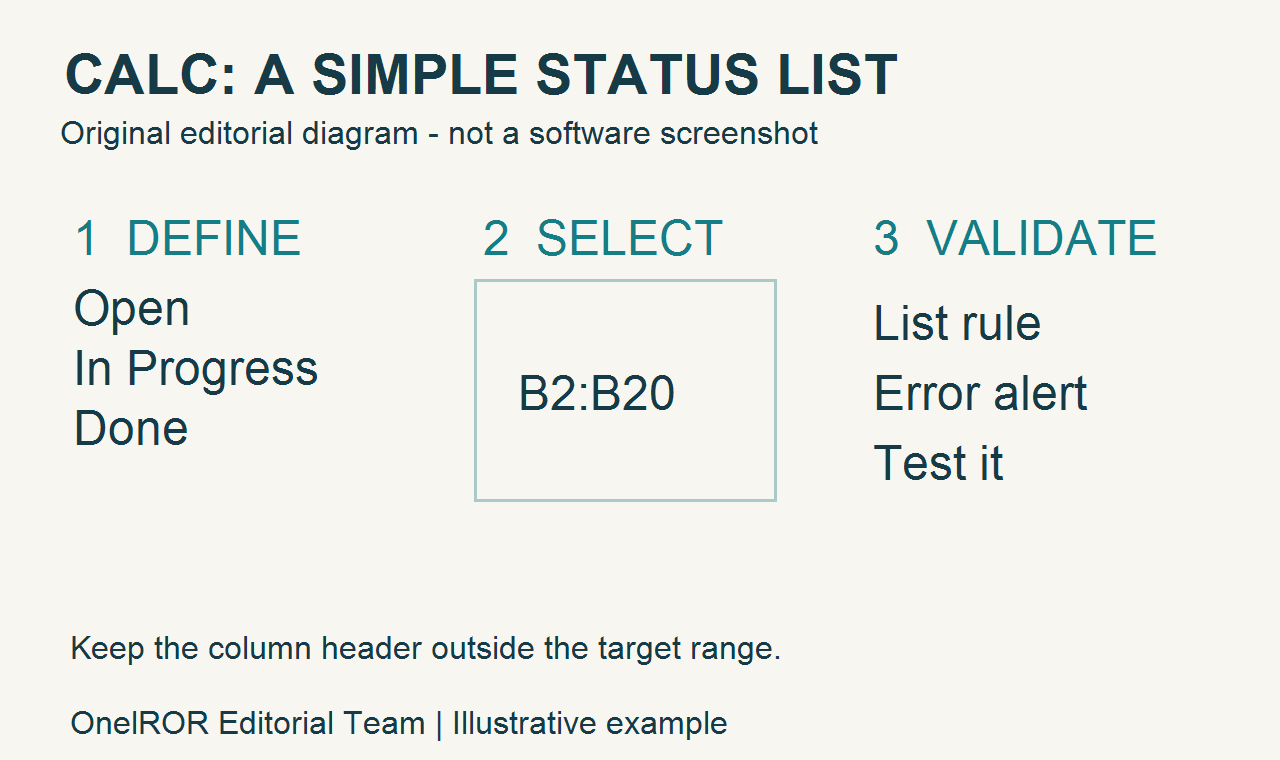
Put Task in A1 and Status in B1. Add a few harmless sample tasks below the first header, such as Check supplies, Review notes and File receipts. The intended status range is B2:B20, which leaves nineteen places for entries. Keep B1 outside the range: the word Status is a heading, not one of the permitted task states. Saving this little example separately makes it easier to diagnose a mistake without disturbing live records.
Define the allowed choices
Select B2:B20, then open Data > Validity. On the Criteria tab, set Allow to List. Enter Open, In Progress and Done in the Entries box, placing each label on its own line. Enable Show selection list. For this example, leave Sort entries ascending off so that the choices retain the order you entered. Confirm the spelling now; the list is a vocabulary decision as well as a convenience control.
If capitalization matters to your workflow, review the Case Sensitive setting deliberately. Choose whether blank cells belong in an unfinished task sheet and review Allow blank cells accordingly. Do not interpret that choice as a guarantee that every row has a status. A list rule and a completeness check answer different questions. For the practice sheet, allowing blanks is reasonable while you are still adding tasks; a final review should identify which tasks remain unlabeled.
The Entries box is sufficient for this short list. Calc also offers a Cell range source when choices live elsewhere in the workbook. The official Criteria documentation specifies a single row or column for that source. A larger reference list needs its own maintenance decisions: who can change it, whether retired labels remain valid, and how collaborators learn about revisions. Keep this first exercise to three direct entries so those decisions do not obscure the basic setup.

Make a typing mistake visible
On the Error Alert tab, enable the option that displays an error message for invalid values and choose Stop as the action. Give the alert a useful title, such as Choose a listed status, and a short instruction, such as Select Open, In Progress or Done. Stop rejects an invalid direct entry and retains the previous contents. Warning and Information can allow an invalid value to be accepted, so they serve a different purpose.
Input Help is optional but useful when somebody else will fill in the sheet. Enable its message-on-selection option, add the title Status, and use a sentence explaining the three choices. This prompt appears when the relevant cell is selected. It helps before an error occurs; the Error Alert responds after an invalid entry is attempted. Avoid long instructions in either message. A colleague should be able to understand the requested correction without opening a separate manual.
Accept the dialog, select another cell, and then return to B2 before testing. The official guide specifically notes that a changed Error Alert action takes effect after another cell is selected. Select an allowed status from the dropdown. Then try typing Waiting directly into that cell. With the configured Stop alert, that unlisted word should be rejected and the previous value retained. Acknowledge the alert and inspect the cell rather than assuming the message alone proves the result.
Test the range, not just one cell
Repeat the allowed-choice and unlisted-word checks in B20, the last cell of the intended range. Inspect B1 separately to confirm that the header was not included. These boundary checks catch a practical selection error: a rule that works at the top of a column can still have been applied to too few rows. If the results differ, return to the intended range and inspect its settings before extending the sheet.
If you see no dropdown, check that Show selection list is enabled for the selected cell. The Criteria help also documents Alt+Down Arrow for opening the list. If an unlisted word is accepted, inspect the Error Alert action and its enabled state, then select another cell before testing again. Check the actual target range as well. Correct one setting at a time so you can see which change fixed the problem.
After the practice checks, remove any deliberately invalid sample data and leave the sheet in an understandable state. Save a working copy in the native OpenDocument spreadsheet format, with the .ods extension. Close and reopen that copy, then repeat one allowed-choice check and one direct-entry rejection check. This is an acceptance test for your saved workbook, not a promise about another file format or a different spreadsheet application. If you exchange a converted copy, test that copy separately.

Audit pasted and existing values
The limitation matters as much as the dropdown. LibreOffice’s validity guide says that the rule does not take effect on a value already present in a cell, or on a value inserted by copying and pasting or drag and drop. Applying the rule therefore does not clean an existing sheet. Nor does a successful direct-typing test establish that every way of bringing data into the workbook will be checked.
Use Tools > Detective > Mark Invalid Data to identify values that do not meet the rule. Try this on the practice copy: paste an unlisted status into a target cell, run the check, and inspect the result. Correct the value to an agreed label and review again. Blank-cell treatment depends on the policy you selected. Also look for missing statuses among actual task rows; a blank permitted by the rule may still be a task that needs attention.
Before sharing the sheet, review every used status cell, check the first and last intended rows, and tell collaborators which three labels mean what. A dropdown improves consistency when people use it, while a deliberate audit covers paths the rule does not enforce. Keep the practice workbook until the real one passes those checks. The useful outcome is a sheet whose vocabulary and limitations you understand, with a repeatable way to inspect its contents.