





How to Use the ChatGPT Windows App in 2026: Coding, Codex, Work & New Features
TECHNOLOGY | AI & SOFTWARE
How to Use the ChatGPT Windows App in 2026: Coding, Codex, Work & New Features
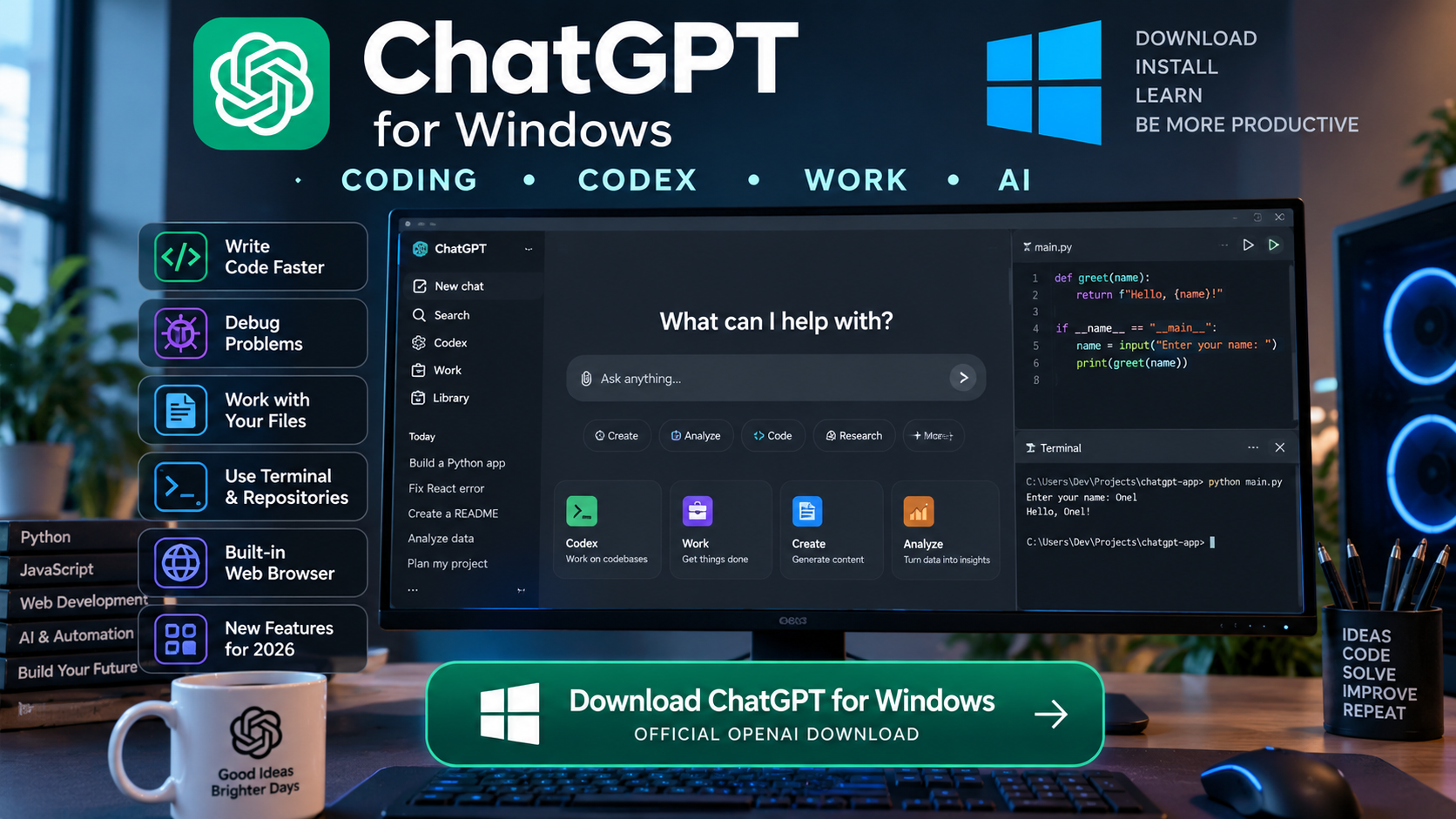
ChatGPT on Windows is becoming much more than a chatbot. This step-by-step guide explains how to install the official desktop app and use Chat, Codex, Work, local files, repositories and AI-powered development tools.
By OnelROR News Desk • September 9, 2026 • Updated for the latest ChatGPT desktop experience
Artificial intelligence is rapidly changing the way people write software, research information and complete everyday computer tasks. The ChatGPT desktop app for Windows brings many of those capabilities into a dedicated application instead of requiring users to keep ChatGPT open in a traditional browser tab.
The newer desktop experience brings together Chat and Work under ChatGPT, while Codex provides a dedicated environment for software development.
For developers, students, business owners and everyday Windows users, that distinction is important: ChatGPT can answer a quick question, while Codex and Work are designed for substantially more involved tasks.
What You Can Do
- Ask questions and use ChatGPT directly from Windows
- Write, explain and debug code with Codex
- Work with local folders and repositories
- Run development commands and tests
- Analyze files and create finished deliverables with Work
- Browse websites from Work or Codex
- Review webpages and local development projects
Step 1: Download the Official ChatGPT App for Windows
The first step is making sure you install the authentic ChatGPT application. Avoid downloading installers advertised as ChatGPT from unknown third-party websites.
Use OpenAI’s official download page instead:
Download ChatGPT for Windows →
Official ChatGPT / OpenAI download page
Security Tip: Do not download a file claiming to be ChatGPT.exe from an unfamiliar website. Use the official ChatGPT download page and follow OpenAI’s installation instructions.
Step 2: Install the App and Sign In
After downloading and installing the application, open ChatGPT and sign in with your ChatGPT account.
The desktop experience can expose different capabilities depending on your account, subscription and workspace configuration, so not every user will necessarily see every feature at the same time.
Step 3: Understand Chat, Work and Codex
One of the biggest changes is that there is no longer just one way to use ChatGPT.
Chat
Best for questions, explanations, brainstorming, research and everyday conversational assistance.
Work
Designed for longer, multi-step tasks such as research, analysis and creating finished documents, spreadsheets, presentations, reports and other deliverables.
Codex
Focused on software development. It can write and debug code, run tests and commands, review changes and work with repositories and developer tools.
Why Codex Is So Useful for Programming
Traditional AI coding assistants often begin with a simple interaction: you paste a piece of code into a chat box and ask what is wrong with it.
Codex can go considerably further. In the desktop environment, it can work with local folders, repositories, terminals and development tools when the appropriate access is provided.
That means a developer can describe an objective instead of manually copying every relevant file into a conversation.
Instead of asking AI for one isolated code snippet, developers can use Codex to work across a real software project.
Example: Ask ChatGPT to Find and Fix a Bug
Imagine you have a web application that suddenly produces an error. Instead of trying to explain every file manually, you can open the relevant project in Codex and describe the problem.
My checkout page throws an error when a customer applies a coupon.
Review the relevant files, identify the cause, fix the bug, run the appropriate tests and explain what you changed.
Codex can inspect the project context available to it, make changes, run commands or tests and allow you to review the result.
You should still review AI-generated code before deploying it to a production website, especially when the changes affect payments, authentication, customer data or security.
You Don’t Have to Be an Expert Programmer
One of the most significant benefits of AI-assisted development is that users can describe what they want in ordinary language.
For example, someone building a website could ask:
“Create a responsive product comparison table.”
“Explain why this JavaScript function isn’t working.”
“Review my project and find accessibility problems.”
“Add a dark mode without breaking the existing mobile layout.”
“Run the tests and fix the failures.”
This doesn’t eliminate the value of programming knowledge. Understanding the code remains extremely useful for evaluating whether the proposed solution is safe, efficient and correct.
Work: AI for Bigger Tasks
Programming isn’t the only area where the desktop experience has expanded.
ChatGPT Work is designed for longer tasks that may require several steps rather than a single response. It can be used for research and analysis and for creating finished outputs such as documents, spreadsheets, presentations and reports.
On supported desktop configurations, Work can also use local files and desktop applications after the user grants the required permission.
ChatGPT Now Has a Built-In Browser
Another major desktop capability is the built-in browser available in Work and Codex on Windows and macOS.
The browser allows ChatGPT and the user to work with the same webpage without constantly moving between separate applications.
It can work across multiple tabs, navigate webpages and handle downloads. Users can also sign in to supported websites directly through the browser when necessary.
Windows shortcut: In Work or Codex, the built-in browser can be opened with Ctrl + Shift + B.
A Powerful Tool for Web Developers
The browser becomes particularly interesting when developing websites.
Developers can open a local development page, inspect the result and use Annotation mode to select an element or area that needs to be changed.
Instead of writing a long explanation such as “the button located underneath the second card on the right,” the developer can select the relevant area, leave a specific instruction and ask ChatGPT to address it.
This creates a tighter workflow between writing code, seeing the result and requesting revisions.
What Can You Build With ChatGPT and Codex?
The tools can assist with many common software-development workflows, including creating new features, debugging existing applications, reviewing code, writing tests, analyzing repositories and explaining unfamiliar codebases.
They can also be useful for people learning programming because users can ask for an explanation of not only what code does, but why a particular approach works.
The Bigger Change
ChatGPT is evolving from a tool that primarily answers questions into a workspace where AI can help users research, create deliverables, work with software projects and interact with digital tools under user control.
Is the ChatGPT Windows App Worth Installing?
For someone who only occasionally asks ChatGPT a quick question, using ChatGPT in a browser may still be sufficient.
The desktop app becomes much more compelling for people who regularly use AI for programming, research, files, business workflows or multi-step projects.
Developers in particular gain a workflow that is much closer to the actual development environment because Codex can work with repositories, local folders, terminals and other developer tools rather than relying exclusively on code pasted into a conversation.
Get Started
Try the Official ChatGPT Desktop App
Download ChatGPT directly from the official source and explore Chat, Work and Codex on your Windows PC. Official ChatGPT Download →
Official Resources
Download ChatGPT — Official Website
OpenAI — ChatGPT Work and Codex
OpenAI — Using the Built-in Browser
Topics: ChatGPT • Artificial Intelligence • Windows • Codex • Programming • AI Coding • Software