
Android Motion Assist: How Passengers Can Set Up the New Moving-Screen Bubbles
Technology | Practical guide
Google’s September Android update introduced a screen-edge overlay that moves with a vehicle. Here is how to find it, set automatic activation and keep a manual switch handy—plus the limits to know before a trip.
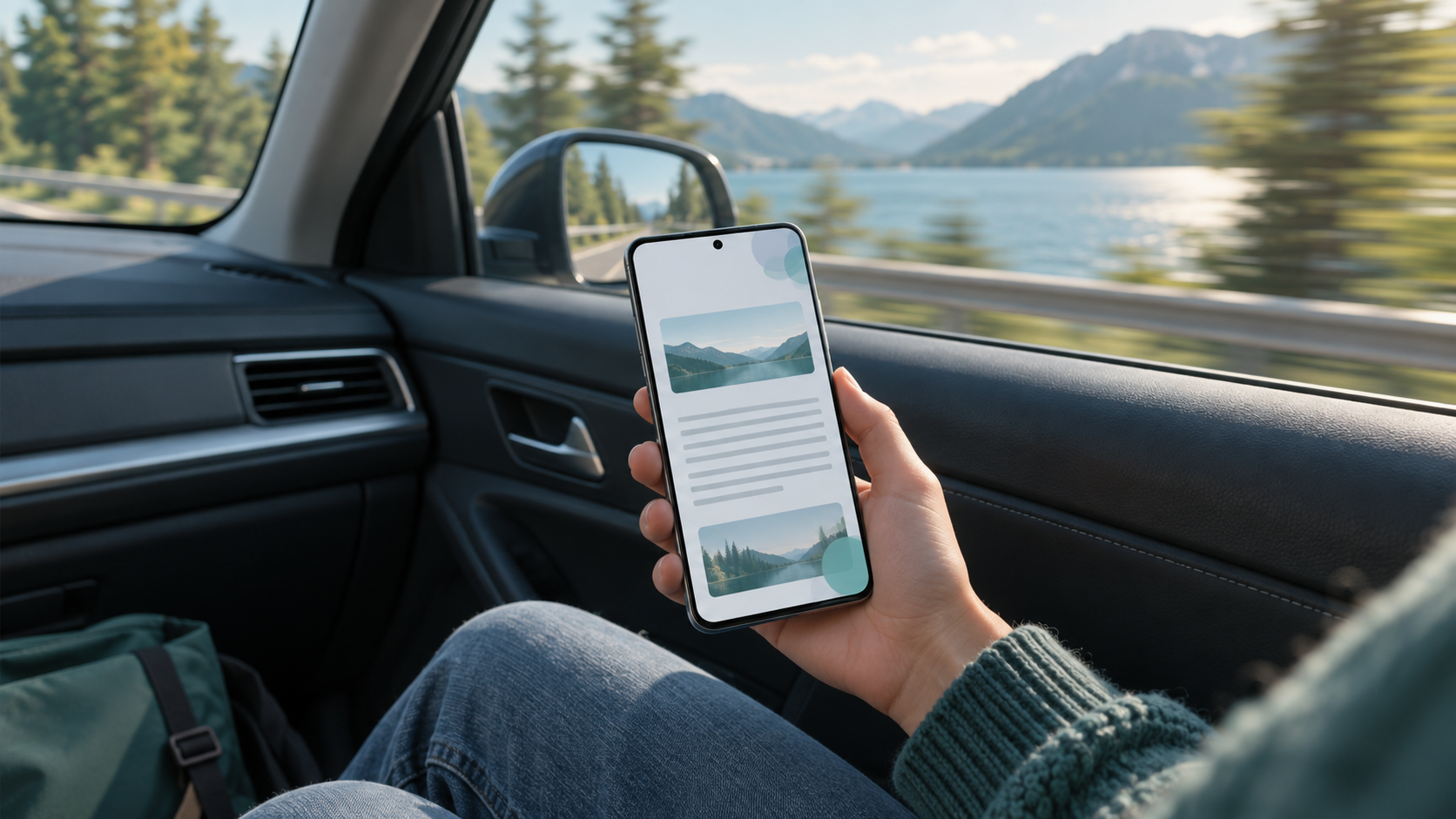
Featured image is an original illustration of a passenger using a phone; it is not a screenshot of the Android interface.
What Motion Assist does
Motion Assist adds small visual bubbles near the edges of an Android screen. They move in response to the phone’s motion sensors as a vehicle turns, accelerates or brakes. Google says the cues are intended to help a passenger reconcile what the eyes see on the screen with what the body feels while riding. The company introduced the feature in its September Android Drop on September 1, 2026. It is an optional comfort feature, not a guarantee that a passenger will feel well enough to keep reading.
Check compatibility first. Google’s setup guide says Motion Assist requires Android 17 or later and updated Google Play services. If the setting is missing, confirm the phone’s Android version and available updates; rollout and manufacturer support can vary. Do not assume an older phone has the feature just because a screenshot appears online.
Find and turn on the setting
Open Settings, tap your profile and then All services. Under Personal & device safety, select Motion assist. Searching for “Motion assist” at the top of Settings is another way to find it. These are the steps in Google’s support documentation; menu labels may vary slightly by device.
Inside the setting, turn on Start in a moving vehicle if you want the bubbles to appear automatically when the phone detects travel. Google recommends also adding a manual control because vehicle detection may not always work. During initial setup you may be offered a Quick Settings tile. If you skipped it, choose Add tile to Quick Settings on the Motion Assist page and pick a small or large tile. Then swipe down from the top of the phone to reach the switch when you need it.
Make the overlay comfortable
Choose Customize on the Motion Assist page to adjust opacity, color and shape. A lighter overlay may interfere less with text; a more visible one may be easier to notice. The page previews the changes, so try a few combinations before travel. Google also offers a randomization setting that periodically changes the bubbles’ color and shape. None of these choices needs to be permanent; the aim is to find a display you can tolerate.
If automatic activation starts when you do not want it, Google says a silent notification lets you turn it off for that session. The Quick Settings tile provides another manual route. If the ride still feels uncomfortable, stop looking at the phone rather than pushing through symptoms. Passengers can look outside or take a break; a driver should not use a phone to test this feature while driving.
What this guide can and cannot promise
Motion Assist is designed to help reduce discomfort for some people, but Google’s explanation does not establish that it prevents motion sickness for everyone. It is also separate from any treatment or diagnosis. If travel symptoms are severe, recurrent or concerning, seek individualized medical advice. For ordinary setup, the most useful checks are Android 17 eligibility, updated Play services, automatic activation, a manual tile, and a bubble style that does not obstruct the content you need.
Sources: Google, September Android Drop, September 1, 2026; Google Android Help: Motion Assist. Availability and menus should be checked on the individual device.