


Logitech Brio 500 Webcam Guide: 1080p Video, Show Mode and Desk Setup
Reviews & Guides · Shopping & Deals
A webcam upgrade is only useful if it improves the actual meeting setup: light, angle, microphone path and software control matter as much as resolution.
By OnelROR Editorial Team · October 3, 2026 · 4 min read
This guide uses public product information and Amazon listing checks. It is not a hands-on lab test.
Best for: remote workers and students who want a 1080p webcam with framing and desk-document flexibility.
Consider another option if: users who need 4K capture, Windows Hello sign-in or a camera that requires no software settings.
Affiliate disclosure: As an Amazon Associate, OnelROR may earn from qualifying purchases. We may receive a commission at no extra cost to you when you use our Amazon link. Prices, bundles and availability can change.
What Logitech emphasizes
Logitech describes Brio 500 as a Full HD 1080p webcam with light correction, auto-framing and Show Mode. Those features target video calls and quick document sharing, not cinematic production. On Amazon, make sure the listing is Brio 500 rather than a similarly named Brio model.
Setup details that matter
A webcam should be tested on the monitor where it will live. Check whether the mount sits securely, whether the cable reaches the computer and whether the camera angle flatters the face under normal room lighting. If your workspace has a bright window behind you, light correction can help but cannot replace better placement.
Software and privacy checks
Install Logitech software only if you want supported controls such as framing or updates. Review camera permissions in your meeting apps, and use any privacy shutter or physical cover consistently. Test the microphone path separately if you use a headset or external mic.
Our assessment
Brio 500 makes sense for everyday meetings when 1080p quality and easier framing matter. It is less compelling if your main problem is room lighting or audio. Verify the exact Amazon result, seller, return terms and included accessories before checkout.
Check software support before buying
Logitech states that the Brio 500’s auto-framing feature requires Logi Tune, which is not available for ChromeOS. That distinction matters if you use a work computer with restricted software installation or a Chromebook. Confirm your operating system and permission to install any required software before treating every advertised feature as available in your setup.
Basic camera use and optional enhancements are separate questions. Check the manufacturer’s compatibility information and your meeting application’s settings for the features you need. If your organization controls video-call software, ask which external cameras and settings it permits. A feature that works on a personal laptop may not be accessible through the same controls on a managed work device.
Improve the scene as well as the camera
Before replacing your existing webcam, inspect a camera preview in your normal seat. Notice where the brightest light is, how much background is visible and whether the lens sits above or below your eye line. Move a lamp or adjust the monitor if practical. Better placement can solve a problem that extra resolution alone cannot address.
For this camera, check that the monitor mount suits your display and that the cable can reach the intended computer connection without pulling. Decide whether you will use the webcam’s microphones or a separate headset. Select both camera and microphone explicitly in the meeting app; connecting new hardware does not prove that the app has switched away from its previous inputs.
Rehearse your real meeting
Try a short private test call in the software you normally use. Check framing, voice pickup and how the picture changes under your daytime and evening lighting. If you intend to show documents on the desk, rehearse that position before a live presentation. Clear unrelated papers from the area so the demonstration does not reveal information you did not intend to share.
Assess the result at the receiving end when possible. A sharp local preview does not guarantee identical video after a meeting service processes it or a connection becomes congested. We have not measured Brio 500 image quality, so this guide offers a setup checklist rather than a lab ranking. Keep the packaging until you have confirmed that the camera improves the calls you actually make.
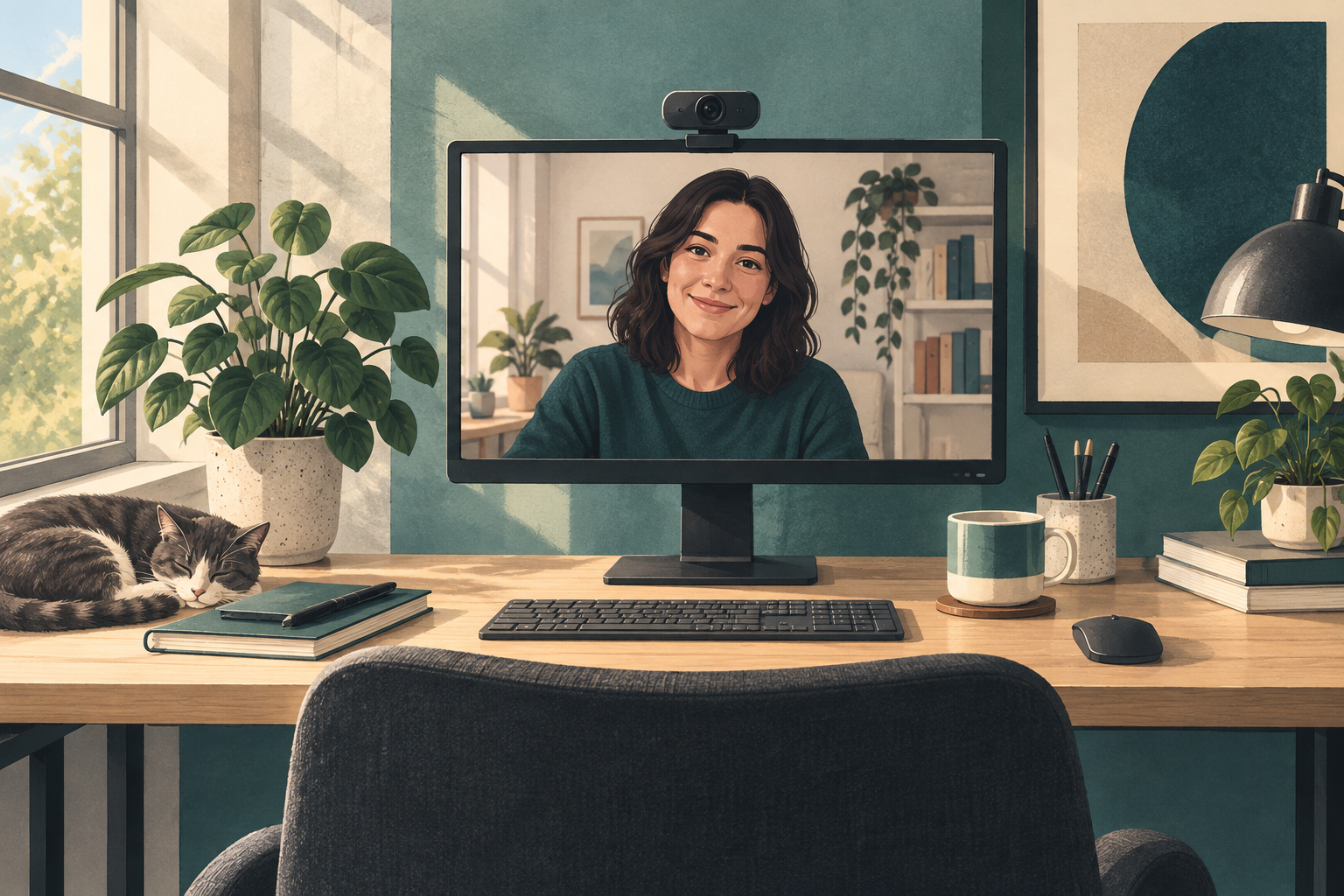
Featured image: original editorial illustration, not a photograph of the exact webcam.