


Why Full Wi-Fi Bars Don’t Guarantee Fast Internet

Why Full Wi-Fi Bars Don’t Guarantee Fast Internet
Technology · OnelROR Editorial Team · 21 October 2026 · 4 min read
A phone can show a strong Wi-Fi signal while a video buffers or a call stutters. That isn’t necessarily a contradiction: the bars describe one part of the connection, not every link between your device and the service you’re using. Treat them as a coverage clue, not a speed score.
What the bars measure—and what they leave out
Google’s Android guidance says the Wi-Fi icon reflects signal strength: a fuller icon means a stronger signal. It does not promise a particular download speed. Your connection also depends on the router’s capacity, other devices sharing it, the broadband link to your provider, and the route to the app or website.
Speed is not one number, either. Download and upload rates matter for moving data; latency is the delay before a response arrives, which can affect gaming and calls. Packet loss can interrupt data even when a signal looks strong. The FCC measures these as separate broadband performance characteristics, so a single icon cannot summarize them all.

Where a strong signal can still slow down
Wi-Fi uses radio channels that nearby networks may share. Microsoft notes that channel congestion, distance, walls, router placement, and other devices can affect a home connection. A device near the router may therefore have plenty of signal while waiting for a busy channel or competing traffic.
And the slowdown may be beyond Wi-Fi. If several devices are slow at once, the router, modem, broadband provider, or a particular online service could be involved. A strong signal icon cannot tell you which one. It only makes a weak local radio link less likely.
Use comparisons to narrow it down
- Compare locations. Run the same test on the same device near the router and again where the problem occurs. A large improvement nearby points toward coverage or interference, though it is not proof by itself.
- Compare devices. Test a second device in the same spot at about the same time. If only one struggles, look at that device or app first. If both do, investigate the shared network or service.
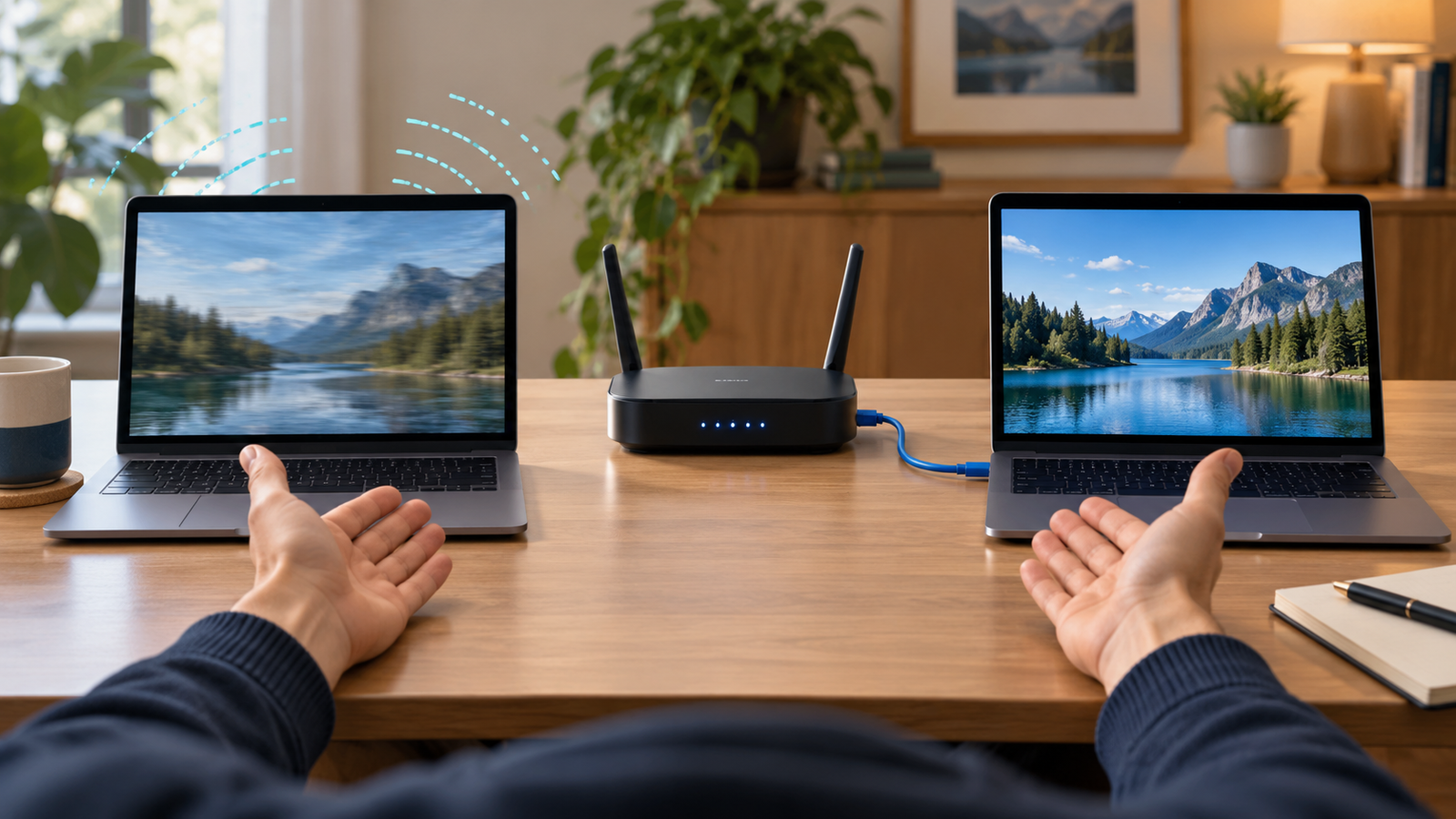
- Compare Wi-Fi with Ethernet, if available. Connect a computer to the router with a cable and repeat the test. Microsoft recommends a wired comparison to help distinguish a Wi-Fi issue from a broader connection problem. If both are slow, the cause may be the router, modem, provider, or test destination; if wired is much better, focus on the wireless link.
- Record more than the bars. Note download, upload, and latency, plus the time and test location. Repeat once later. A single test can be affected by the device, server, or momentary network traffic.
Change one thing at a time
If the comparison points toward Wi-Fi, try moving the router to a more central, open spot and retest. Microsoft also suggests checking the home layout and channel conditions; if you compare bands such as 2.4 GHz and 5 GHz, test from the same place rather than changing several settings at once. Keep a note of the original setup so you can undo a change that makes things worse.
If wired and wireless tests are both poor across devices, save the results and contact your provider or check its service-status page. Don’t buy an extender just because the bars look low, and don’t assume full bars rule out a network problem. The icon answers a narrow question—how strong the local Wi-Fi signal appears—not whether the whole trip to the internet is fast.