

Clean a Laptop Screen Without Damaging It
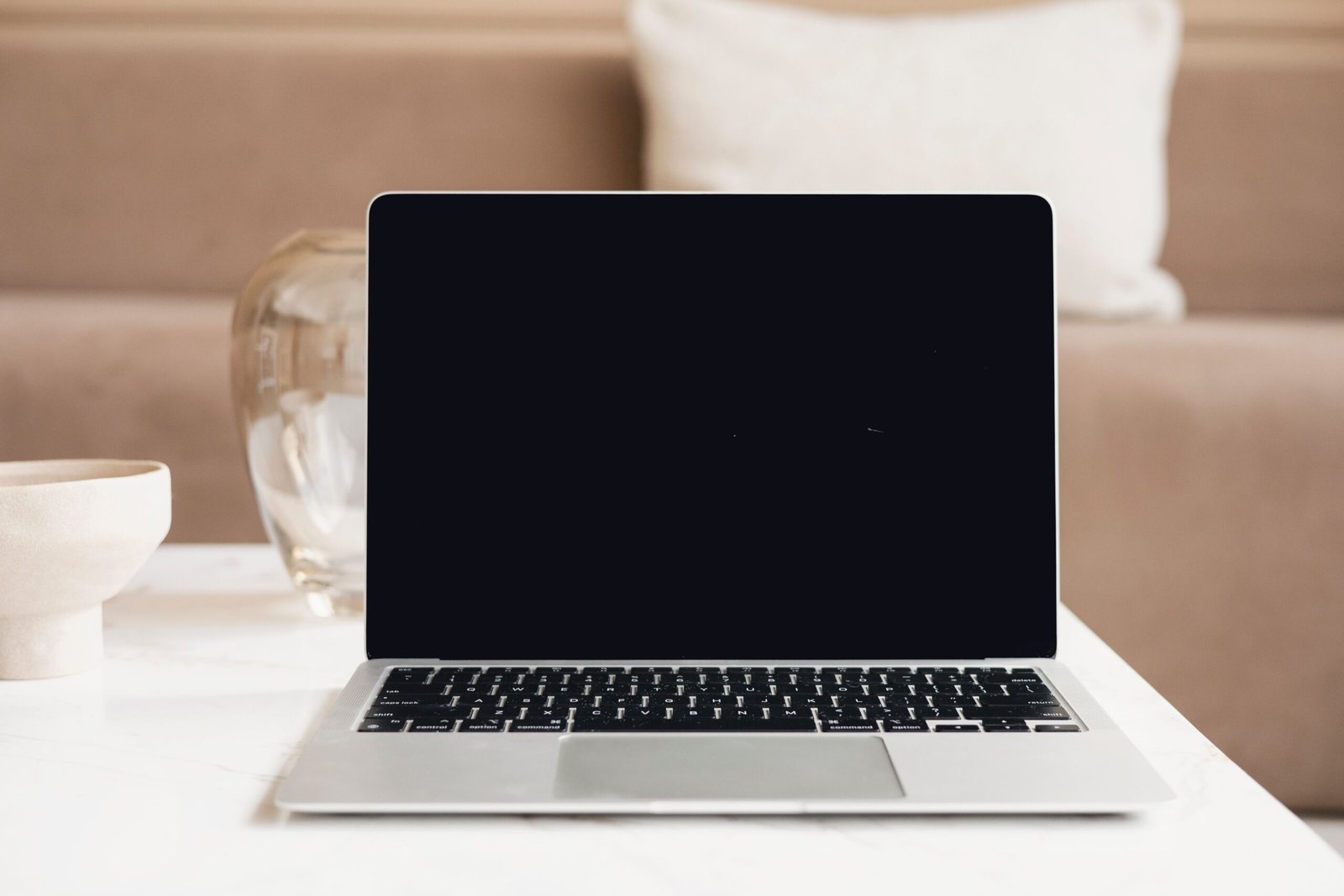
A fingerprint is annoying, but a cleaning mistake can leave a more lasting mark. Laptop displays can have different surface treatments, so a method approved for one machine is not automatically suitable for another. Start with the instructions for your exact model, then use the least aggressive method that removes the dirt. Routine screen cleaning should not become a test of stronger chemicals or harder rubbing.
Featured photo: Hanna Pad on Pexels. Check the instructions for your exact laptop and display finish.
Check the display instructions first
Find the manufacturer's cleaning page for your laptop and check whether it has a special display finish. Read the screen section, not just advice for the case or keyboard. Those surfaces can have different care requirements. For example, Microsoft's Surface guidance separates touchscreen cleaning from its instructions for keyboard covers.
Nano-texture displays also deserve a separate check. Apple's current nano-texture guidance lists suitable cloth options and an infrequent method for stubborn marks. Do not assume that older advice for another model, finish, or region describes your screen. When instructions conflict, stop and confirm the guidance for the device in front of you.
Set up before touching the panel
Shut the laptop down and disconnect its charger and attached cables. Put it on a stable surface where you can reach the display without stretching or tipping the machine. Keep the cleaning liquid away from the laptop while preparing the cloth.
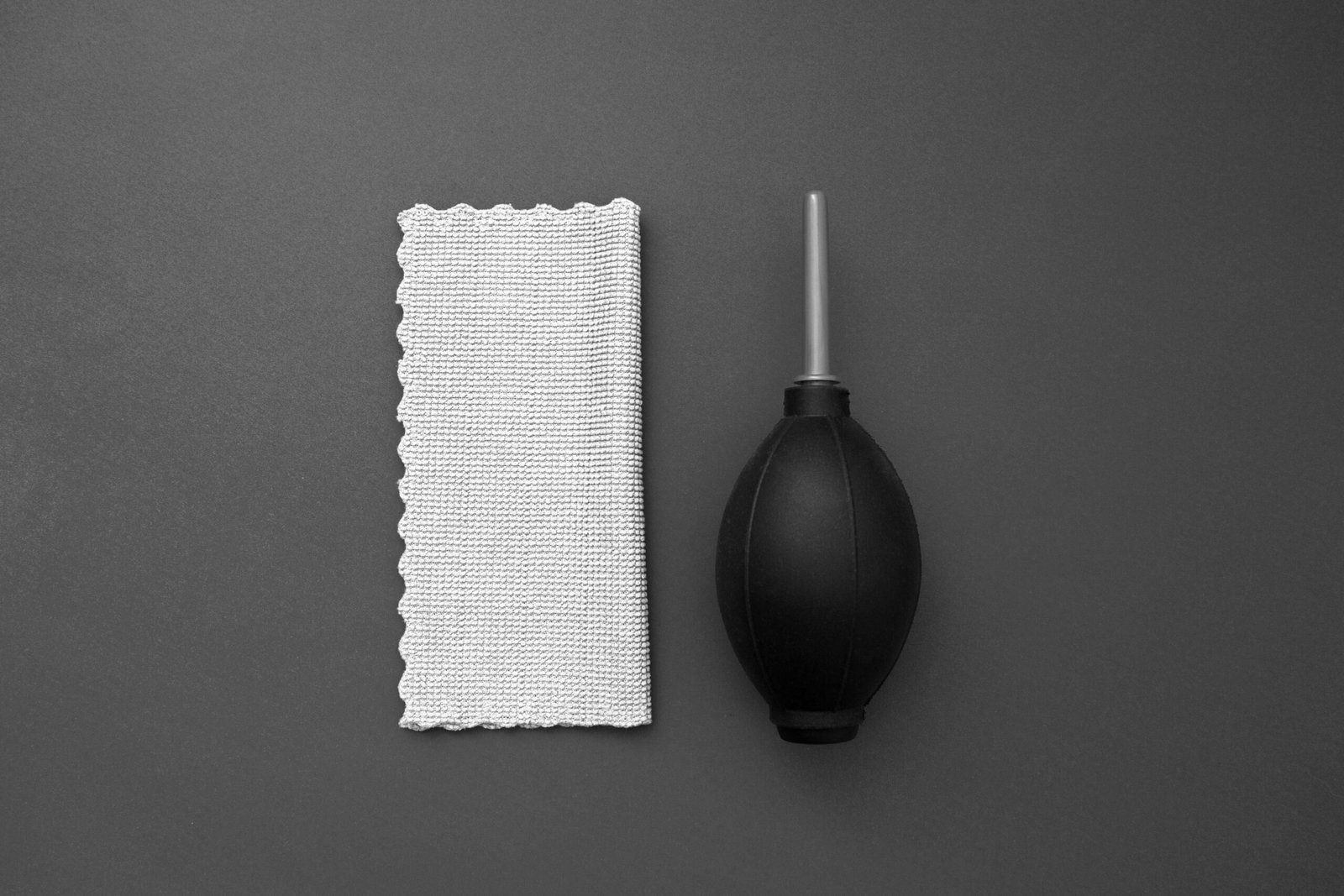
Use a clean, soft cloth suitable for the display. A microfiber cloth intended for electronics is a useful starting point where the manufacturer approves it. Check that it has no grit or debris, and reserve it for the screen rather than reusing something that just wiped a dusty keyboard or an oily desk. Dell recommends a dry microfiber cloth as the first step.
Remove dust with a light touch
Begin with the cloth dry. Move it gently across the surface, using very little pressure. This first pass may be enough for loose dust, so inspect the result before adding moisture.
Do not scrub a stubborn spot or press into the panel to make the cloth work harder. Microsoft specifically notes that Surface fingerprints should not require force. If a mark remains after a gentle pass, change the method only as the manufacturer's instructions allow. Cleaning is not a way to repair a scratch, a damaged coating, or a display defect.
Treat remaining smudges carefully
If the approved routine permits water, lightly moisten a small part of the cloth. The aim is a barely damp cleaning surface, not something that drips. Dell's screen-cleaning procedure specifies distilled water for persistent smudges. Apple's routine Mac laptop instructions call for a water-dampened, lint-free cloth.
Apply the permitted liquid to the cloth away from the machine, never by spraying the panel. Keep moisture out of the bezel, camera area, and other openings. Gently wipe the affected area, then inspect it again instead of repeatedly wetting the whole display. Follow the device's instructions for removing residual moisture with a dry area of the cloth.
If you cannot identify a liquid as approved for that model and finish, do not guess. A bottle labelled for general household cleaning is not a substitute for the laptop's care instructions.

Do not turn an alcohol exception into a universal rule
Manufacturer recommendations differ. Apple allows a cloth moistened with 70% isopropyl alcohol for difficult smudges or fingerprints on specified Mac laptop surfaces. Microsoft permits water or an isopropyl-alcohol solution of 70% or less when needed for Surface touchscreens. These are device-specific instructions, not a recipe for every laptop.
A disinfecting instruction for an enclosure does not automatically apply to its display coating. Follow the screen-specific guidance, including any special-finish restrictions. Avoid household glass cleaner, abrasive materials, and paper towels unless the exact display instructions explicitly say otherwise. Do not mix a homemade cleaning solution based on a generic internet tip.
Finish before switching back on
Let the display dry fully before restoring power, as Dell's maintenance guidance advises. Inspect it in ordinary light. If a streak remains, check that the cloth is clean and review the approved process rather than escalating to pressure or an unapproved cleaner.
If liquid has entered the housing, stop treating the situation as routine cleaning and consult the manufacturer's support guidance. Do not simply restart the laptop because the outside looks dry.
For the next cleaning, keep the routine simple: check the model, power off, try a clean dry cloth, use only permitted moisture if needed, and wait until everything is dry. A gentle, repeatable process is more useful than a universal cleaner recommendation.
Official references
- Dell: screen-cleaning procedure
- Dell: computer maintenance
- Apple: Mac laptop cleaning
- Apple: current nano-texture care
- Microsoft: Surface care
Written by OnelROR Editorial Team. October 24, 2026. 4-minute read.