


UGREEN Revodok Pro 109 Guide: Ports, Power Delivery and Desk Reality
Reviews & Guides · Shopping & Deals
A USB-C hub can clean up a desk or create a new compatibility puzzle. The useful question is not how many ports it has, but which ports your laptop can actually drive.
By OnelROR Editorial Team · October 3, 2026 · 4 min read
This guide uses public product information and Amazon listing checks. It is not a hands-on lab test.
Best for: laptop users who need HDMI, Ethernet, card reading and extra USB ports from one compact hub.
Consider another option if: users who need a full docking station, multiple high-resolution displays or guaranteed compatibility with every tablet.
Affiliate disclosure: As an Amazon Associate, OnelROR may earn from qualifying purchases. We may receive a commission at no extra cost to you when you use our Amazon link. Prices, bundles and availability can change.
Read the port list carefully
UGREEN lists the Revodok Pro 109 as a 9-in-1 USB-C hub. A hub with HDMI, Ethernet, USB and card slots can simplify a bag or desk, but Amazon listings sometimes mix nearby models. Confirm the exact Revodok Pro 109 name and port layout before checkout.
Compatibility comes from the host device
Display output, charging pass-through and transfer speed depend on the laptop or tablet USB-C port. Some USB-C ports handle data but not video. Others limit refresh rate or power. Check your computer specifications before blaming the hub for a feature the host cannot provide.
Heat, cables and power
Compact hubs can get warm during display output or charging. Use the included cable length as designed, avoid stacking it under heat sources and test every critical port before relying on it for work. If your desk is permanent, a powered dock may be more stable.
Our assessment
This UGREEN hub belongs on the shortlist for flexible everyday expansion. It is not a substitute for checking your laptop’s USB-C capabilities. Verify the exact Amazon result, seller, return terms and included accessories before checkout.
Make a port inventory first
Write down what you want connected at the same time: monitor, keyboard, mouse, wired network, memory card and storage. For each item, record its connector and the job it performs. This turns a vague desire for more ports into a specific compatibility check. Count the connections needed during your busiest task rather than the accessories you own but rarely connect together.
Then check the specifications for the particular USB-C socket on your computer. A laptop can have several similar-looking sockets with different capabilities. Match video output and charging requirements to the socket you will actually use. If the documentation is unclear, ask the computer manufacturer before purchasing; the hub’s connector shape cannot resolve missing host support.
Separate display, data and charging questions
For a monitor, compare the desired resolution and refresh rate with the limits of the complete connection. Your computer, hub, display input and cable all matter. A general compatibility statement is less useful than confirmation of the exact mode you need. If your work requires more than one independent screen, obtain explicit support information rather than inferring it from the total number of ports.
For storage, decide whether the hub is intended for occasional file copies or a demanding daily workload. The advertised maximum for an individual connection does not establish the speed of every device working simultaneously. For charging, check what the power input accepts and what is available to the host, along with the charger and cable requirements. Do not assume that a high wattage printed on a listing means that power supply is included.
Test your normal work session
After delivery, start with one accessory, then add the others you normally use. Check display wake-up, network access and a copy of a nonessential test file. Disconnect storage using your operating system’s safe removal procedure. Keep important original files backed up while assessing unfamiliar hardware.
Arrange cables so they do not tug on the laptop socket when you move the computer. Leave the hub where you can access card slots without lifting a stack of equipment. Finally, compare the complete setup with your original port inventory. A successful purchase should cover the required tasks reliably, not merely fill a desk with additional sockets you cannot use.
If a phone also lives beside your laptop, plan its position and cable route as part of the same desk layout. Our Lamicall phone stand guide covers case fit, viewing angles and charging-connector clearance.
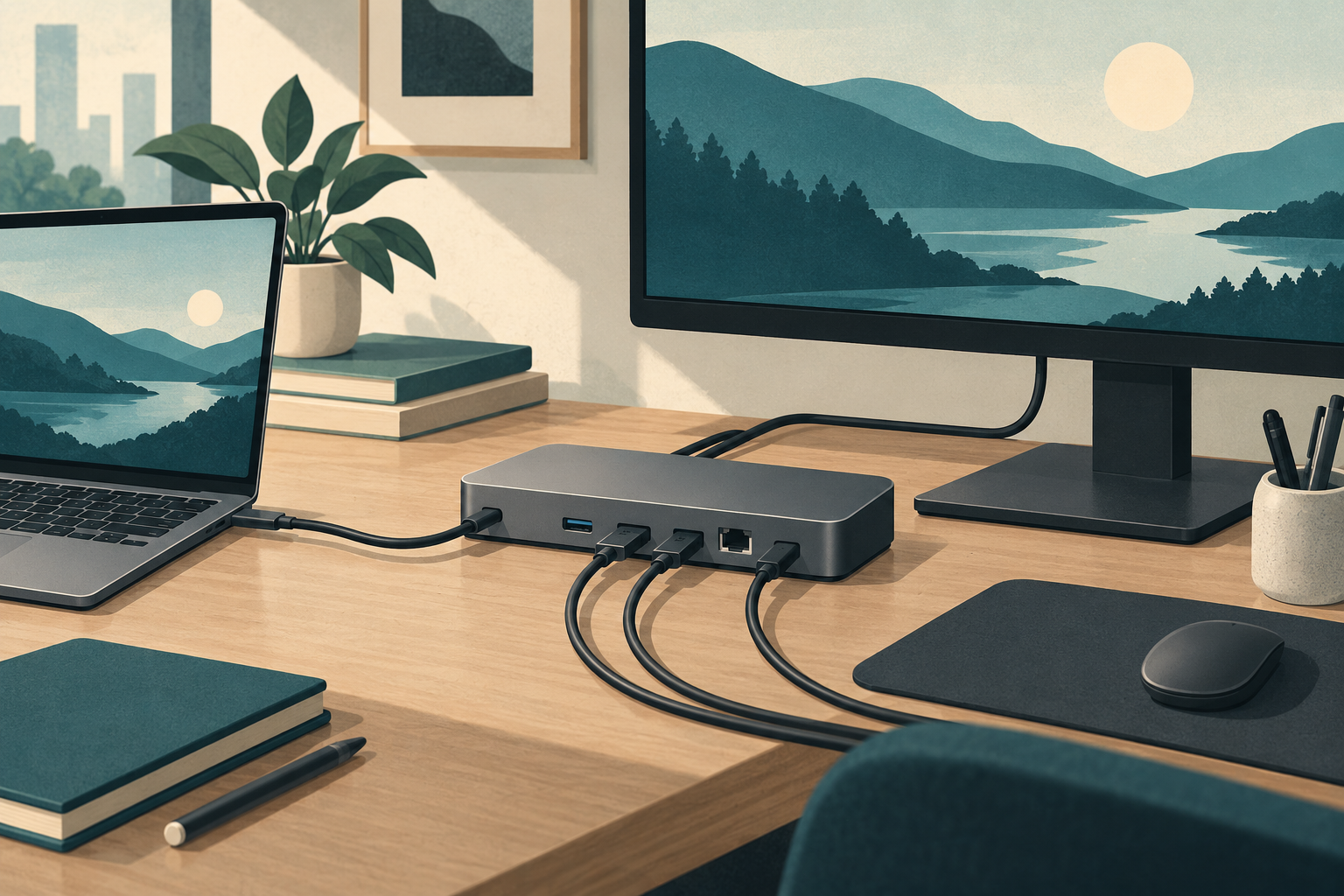
Featured image: original editorial illustration, not a photograph of the exact hub.